

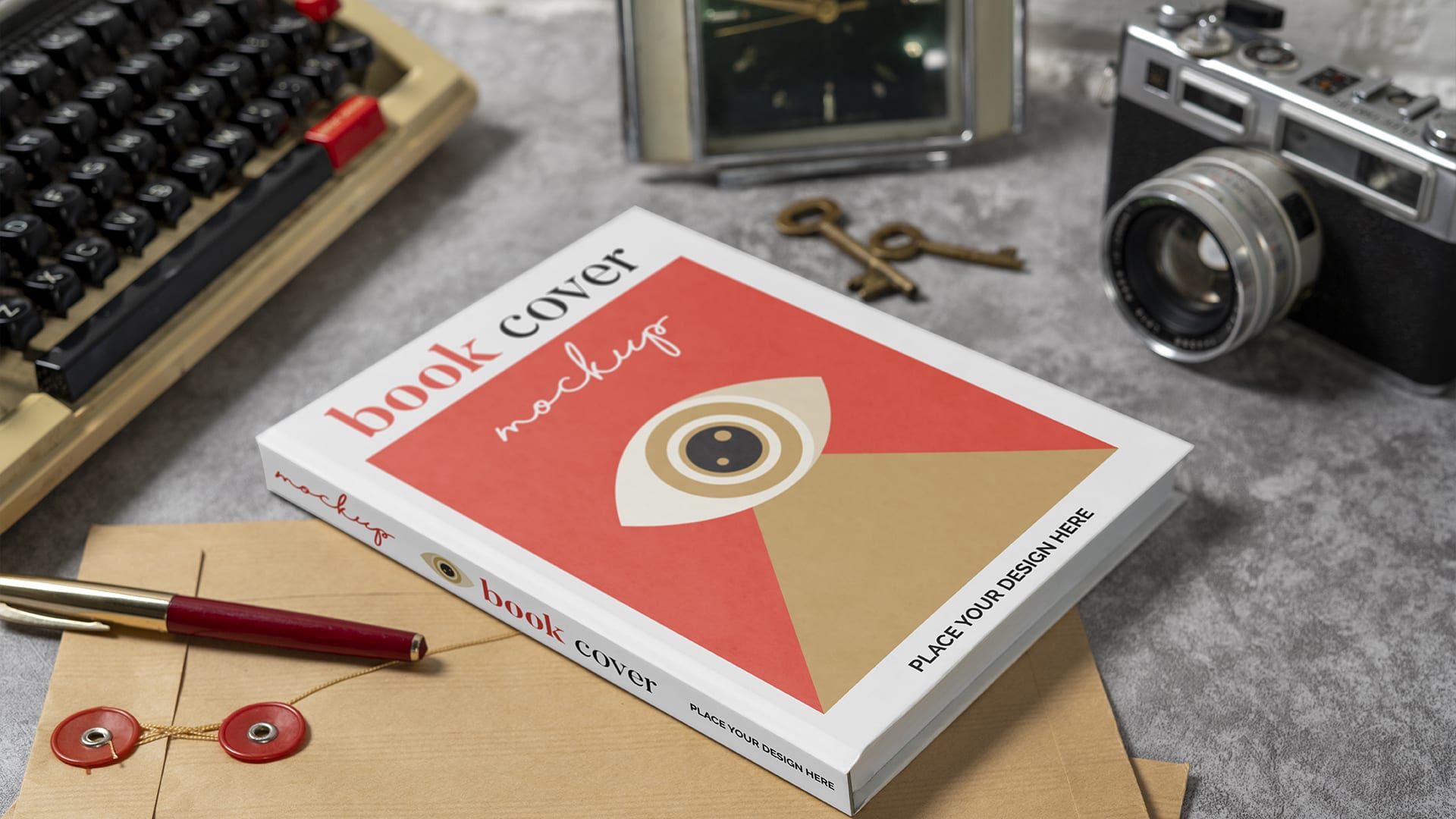
A great book cover does more than introduce your story. It sets the tone, defines your genre, and gives readers their first emotional impression. But before you publish or promote your book, you need one more essential element: a realistic mockup that makes your cover look like a finished, tangible product.
Whether you want a 3D hardcover, a paperback standing upright, a Kindle-style mockup, or a flat-lay desk scene, you can create all of them inside one versatile tool: Photoshop.
And the best part? You don’t have to be a designer to make it work. With the right process and a good template, you can transform your flat cover design into a polished, professional mockup in minutes.
In this guide, you’ll learn the exact steps authors, cover designers, and book marketers use to create a clean, realistic book cover mockup photoshop layout that’s perfect for promotions, social media, Amazon A+ content, or website branding.
Why Book Cover Mockups Are Important
Mockups help your book look real before it’s printed. They allow readers, clients, and publishers to visualize your design as a physical product, not just a flat JPG.
Here’s why mockups are essential:
They elevate professionalism.
A real-looking book image immediately increases credibility.
They make marketing easier.
You can use mockups for:
- Social media posts
- Ads
- Website banners
- Amazon A+ visuals
- Pre-launch promotions
They help with visualization.
A mockup lets you see how your design looks in different angles and settings.
They attract readers.
People respond to visuals that feel polished and tangible.
If you want your book to stand out, mastering book cover mockup photoshop techniques is absolutely worth it.
What You Need Before You Start
Before creating your mockup, get the following ready:
1. Your final book cover design
Preferably high-resolution (1600px+ on the long side).
2. A mockup template
Find PSD templates on:
- Freepik
- MockupWorld
- Behance freebies
- Creative Market
- Envato Elements
Choose templates that include:
- Smart object layers
- Realistic shadows
- Clean lighting
- Front + spine options (if needed)
3. Photoshop
Any version that supports Smart Objects works fine.
Once you have these, you’re ready to build your mockup.
Step-by-Step Guide: Create a Book Cover Mockup in Photoshop
Below is the easiest, most beginner-friendly way to create a polished mockup.
Step 1: Open the Mockup Template
- Launch Photoshop
- Go to File -> Open
- Select your PSD mockup template
You’ll see multiple layers like:
- “Insert Your Cover Here”
- Shadow
- Background
- Highlight
- Spine or front cover layers
The most important layer is the Smart Object for your cover.
Step 2: Locate and Open the Smart Object Layer
In the layer panel, find the one labeled something like:
- “Front Cover”
- “Book Cover”
- “Replace Me”
- “Your Design Here”
It will have a small icon in the thumbnail indicating it’s a Smart Object.
Double-click it.
Photoshop will open a new tab with a flat placeholder image.
Step 3: Insert Your Cover Design
Inside that Smart Object window:
- Delete or hide the placeholder
- Drag in your book cover design
- Resize it so it fits the frame perfectly
- Save (Ctrl + S / Cmd + S)
- Close the Smart Object tab
Your cover should now appear beautifully placed on the mockup.
This is where the real book cover mockup photoshop effect happens. No manual angle adjustments required, the template does the work.
If you want your cover to look polished and professionally presented, Fleck Publisher can handle your mockups, visuals, and design assets for you. Need help making your book look its best? Reach out to Fleck Publisher anytime.
Step 4: Refine Shadows and Highlights
Every good mockup depends on good lighting.
Check:
Shadow layers
Lower opacity if the shadow is too strong.
Highlights
Reduce or adjust brightness to match your cover’s tone.
Texture
Some templates include texture layers, keep them only if they fit your genre.
Alignment
If edges look slightly off, use Edit -> Transform -> Warp to correct shape.
A few small adjustments go a long way.
Step 5: Customize the Background
The background should complement your book, not overpower it.
Great background ideas:
- Soft solid colors
- Gentle gradients
- Minimal desk scenes
- Blurred lifestyle backgrounds
- Simple textured surfaces
Match it to your genre:
- Romance: soft pastels, warm tones
- Fantasy: darker, atmospheric
- Self-help: clean and minimal
- Thriller: bold contrasts
Your background should highlight your cover, not compete with it.
Step 6: Add Optional Enhancements
If you want an even more premium result, consider:
Reflections
A subtle bottom reflection adds depth.
Light effects
Soft white brush on low opacity to guide the light direction.
Drop shadows
Add realism, especially for flat-lay mockups.
Props
Pens, plants, glasses, or coffee mugs but use sparingly.
Keep your visual clean and intentional.
Common Mistakes to Avoid
Avoid these mistakes to ensure your mockup looks professional:
- Low-resolution cover images: Always use HD files.
- Over-editing: Too much sharpening or contrast ruins realism.
- Busy or distracting backgrounds: Your book should be the focus.
- Incorrect alignment: Make sure your design fits the template frame perfectly.
- Heavy props: Use only what enhances the book.
Clean mockups convert better.
Where to Find Quality Mockup Templates
Here are great places to find mockups:
Free Resources
- MockupWorld
- Freepik
- Pixeden
- GraphicBurger
Premium Resources
- Creative Market
- Envato Elements
- Yellow Images
- DesignBundles
Premium templates usually offer:
- Better lighting
- Stronger realism
- More angle variations
- Higher resolution
If you’re designing multiple books, a premium pack is worth it.
Tips to Make Your Book Mockup Stand Out
Here are insider tips designers use:
Use multiple mockup variations.
Front view, angled shot, 3D render—variety helps marketing.
Keep everything on-brand.
Colors, backgrounds, and props should match your author aesthetic.
Ensure text is readable at thumbnail size.
Crucial for Amazon and online platforms.
Avoid overcomplicating.
Simple, clean mockups have a higher professional impact.
Maintain consistency across all visuals.
Brand consistency builds trust.
Conclusion
Creating a book mockup is one of the easiest ways to make your cover look professional, polished, and ready for readers. Once you learn the basics of book cover mockup photoshop, you can use this skill for every book you publish. A strong mockup helps your book stand out online, attract attention, and elevate your overall branding.
Take your time choosing the right template, keep your design clean, and remember that small lighting adjustments make a big difference. The better your mockup looks, the stronger your first impression will be.
If you need help creating mockups, designing your book cover, formatting your manuscript, or preparing your book for publishing, Fleck Publisher is here to support you.
Contact our team today and let’s bring your book to life with visuals that stand out.